Lists, fields and merge tags
Organise subscribers into lists, keep the details that matter to your business, and use them to personalise every email.
In this lesson
- Create lists and add subscribers to them
- Edit subscribers in place and tidy the data
- Manage fields and use merge tags with fallbacks and date formats
- Use the exclusion list
Lists (groups)
A subscriber can be in any number of lists: Loyal customers, Monthly newsletter, Spring launch event. The lists are on the right of the Mailing lists workspace; click one to see who's in it.
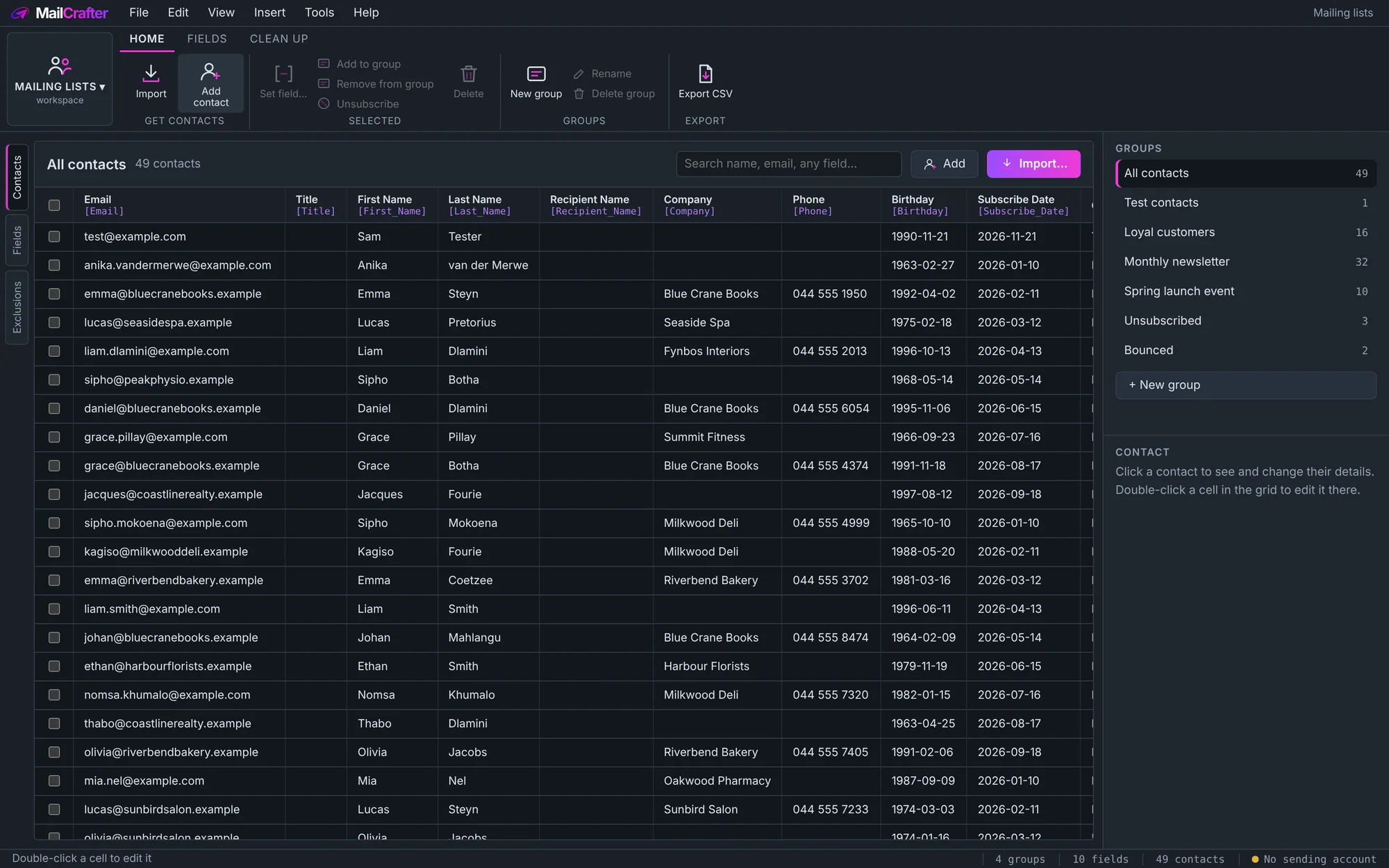
- New group, Rename and Delete group are on the ribbon. Deleting a list doesn't delete the people in it.
- Select subscribers (tick their boxes) and use Add to group or Remove from group.
- Add contact adds one subscriber by hand.
Editing and tidying
- Double-click any cell to edit it, as in a spreadsheet. Click a subscriber to see all their details on the right.
- The search box finds people by name, email or any field.
- Set field… fills one field for every selected subscriber at once.
- Under Clean up: Tidy names & numbers moves titles out of names and removes stray characters Excel leaves behind; Merge duplicates combines records that share an email address.
- Export CSV takes a copy of a list out of MailCrafter.
Fields
Every detail you keep is a field, named with underscores, such as First_Name or Customer_Since.
Open Fields › Manage fields to see them all, with how many subscribers have each one filled in.
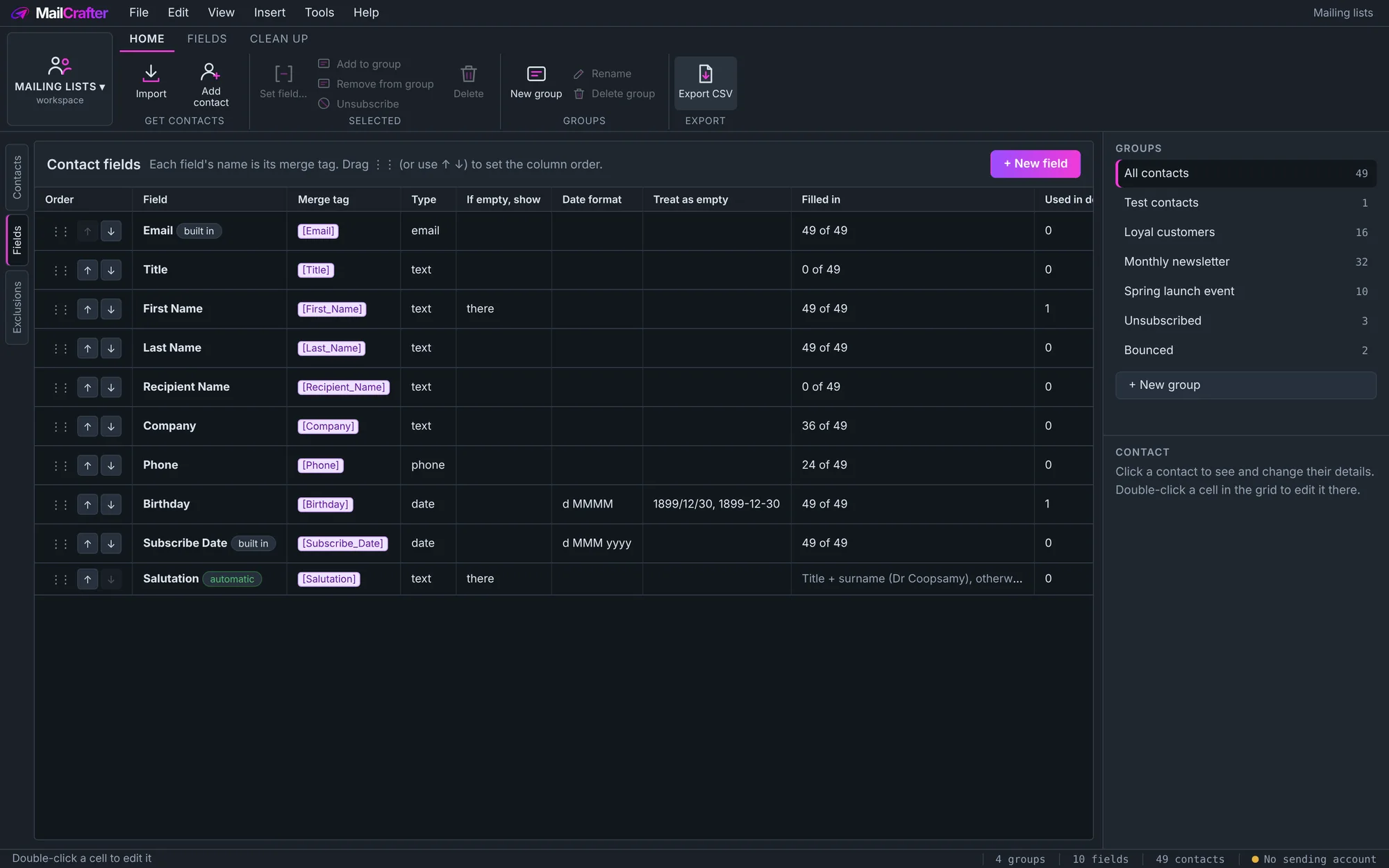
- New field adds one; drag fields to change the column order.
- Type tells MailCrafter whether a field holds text, a date, a phone number or an email address.
- If empty, show sets a fallback for the whole email: for example "there", so "Hi [First_Name]" becomes "Hi there" when the name is missing.
- Date format sets how a date field reads in emails.
Merge tags
Put a field in square brackets anywhere in an email, including the subject line, and each subscriber sees their own value:
Dear [First_Name]→ Dear GraceHi [First_Name|there]→ Hi there, when the first name is empty (the fallback after|wins over the field's own)Happy birthday for [Birthday|d MMMM]→ Happy birthday for 21 November[Salutation]→ "Dr Coopsamy" or the first name, worked out for you
In the designer, click a field under Insert a field in the properties pane, or Personalise › Insert field, rather than typing it. Personalise › Preview as shows the email as a chosen subscriber will see it, and Data check warns you about subscribers with missing details.
The exclusion list
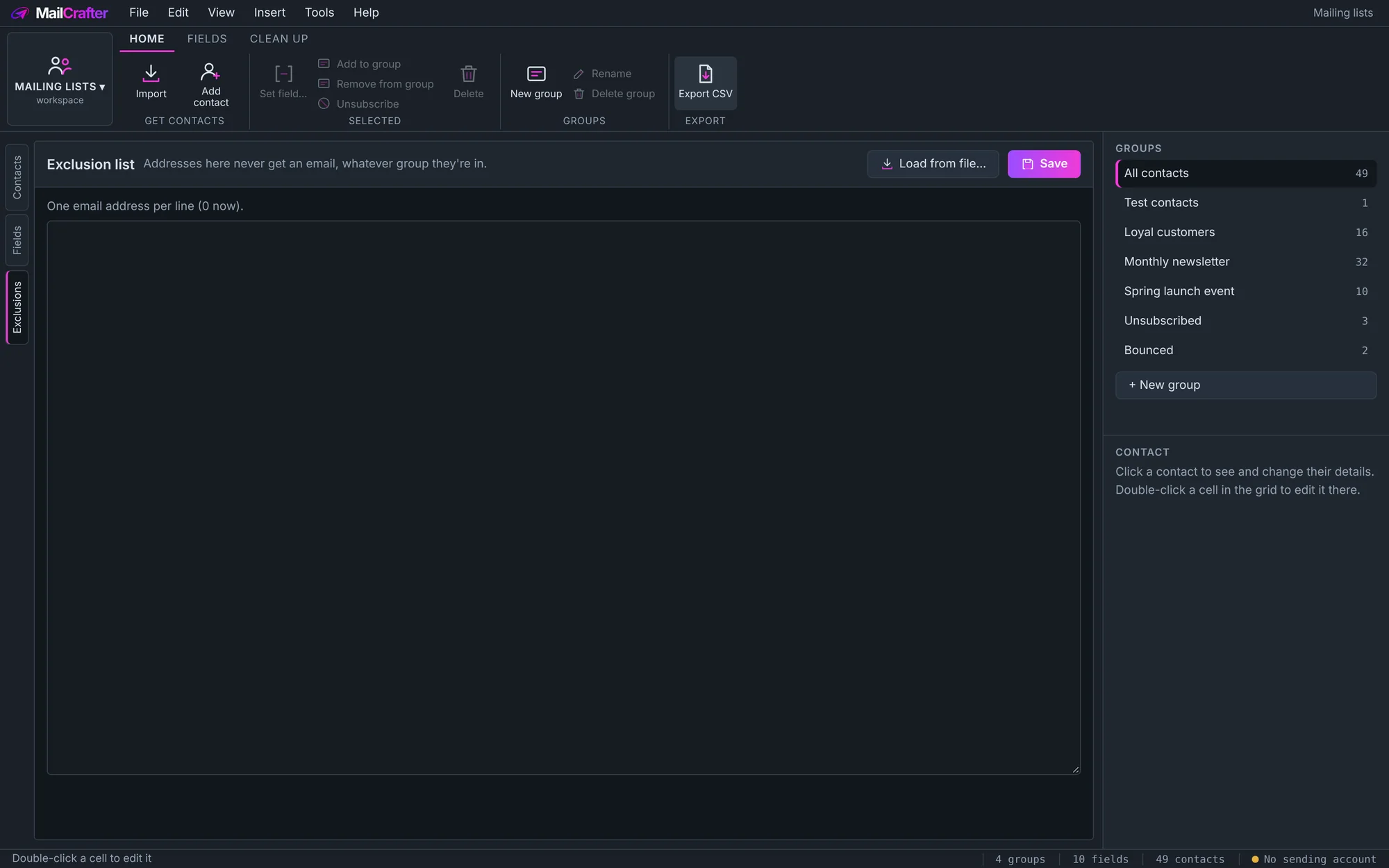
Addresses on the exclusion list are never sent an email, whatever list they're in. Hard bounces go onto it automatically. For now, unsubscribe requests arrive as emails to your From address: select those subscribers and click Unsubscribe on the ribbon, and they're never mailed again. Open it with Exclusion list on the ribbon to add addresses yourself, one per line, or Load from file….
Revision history
| Revision | Date | What changed |
|---|---|---|
| 1 | 21 November 2026 | First edition. |