Lesson 05 · Design
Designer basics
Build an email from blocks, change anything in the properties pane, and set up the email as a whole.
Revision 1 · 21 November 2026About 10 minutes
In this lesson
- Add, move, copy and delete blocks
- Change a block in the properties pane
- Set the email width, colours, background and font
- Use views, zoom and undo
Blocks
An email is a stack of blocks. The toolbox on the left holds them, in the same groups as the Insert tab:
- Content: Heading, Text, List, Table, Highlight, Button
- Media: Image, Picture + text, Columns, Graphics, Icon row
- Layout: Divider, Spacer, Section break
- Brand: Hero, Header, Social links, Footer
- Code: HTML, for your own code
Click a block to add it after the selected one, or drag it to exactly where you want it. Many blocks open a gallery of ready-made styles first: pick one and change it afterwards.
Selecting and changing
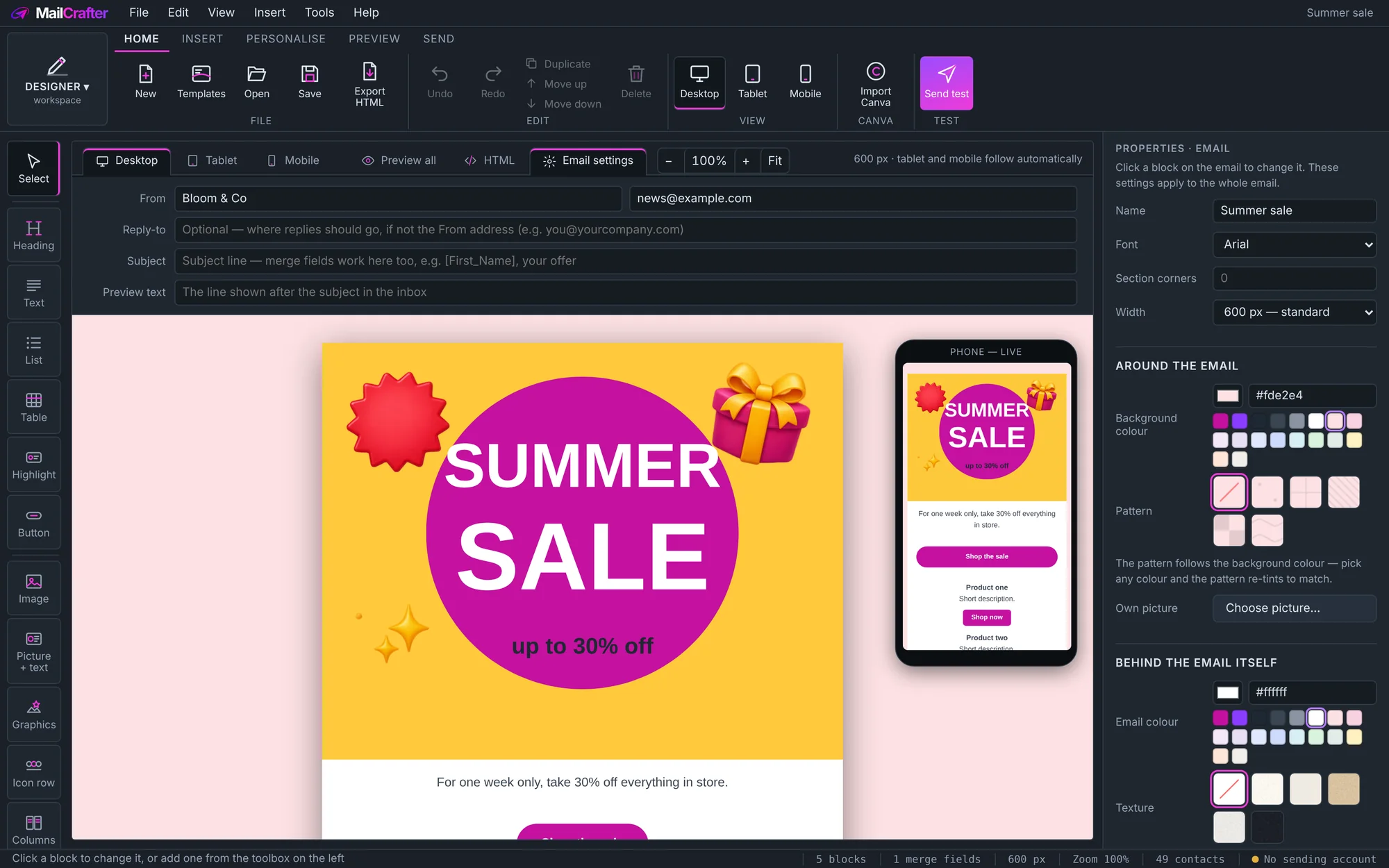
- Click a block to select it. Its settings appear in the Properties pane on the right; changes show immediately.
- The buttons beside a selected block move it up or down, copy it and delete it. The same commands are on the Home tab: Duplicate, Move up, Move down and Delete.
- Most blocks have three more sections at the bottom of their properties: Box (a coloured card with border and rounded corners around the content), Strip (the full-width band the block sits in) and Visibility (show on all devices, desktop only or mobile only).
- Undo and Redo (Ctrl+Z, Ctrl+Y) take back any change.
Email settings
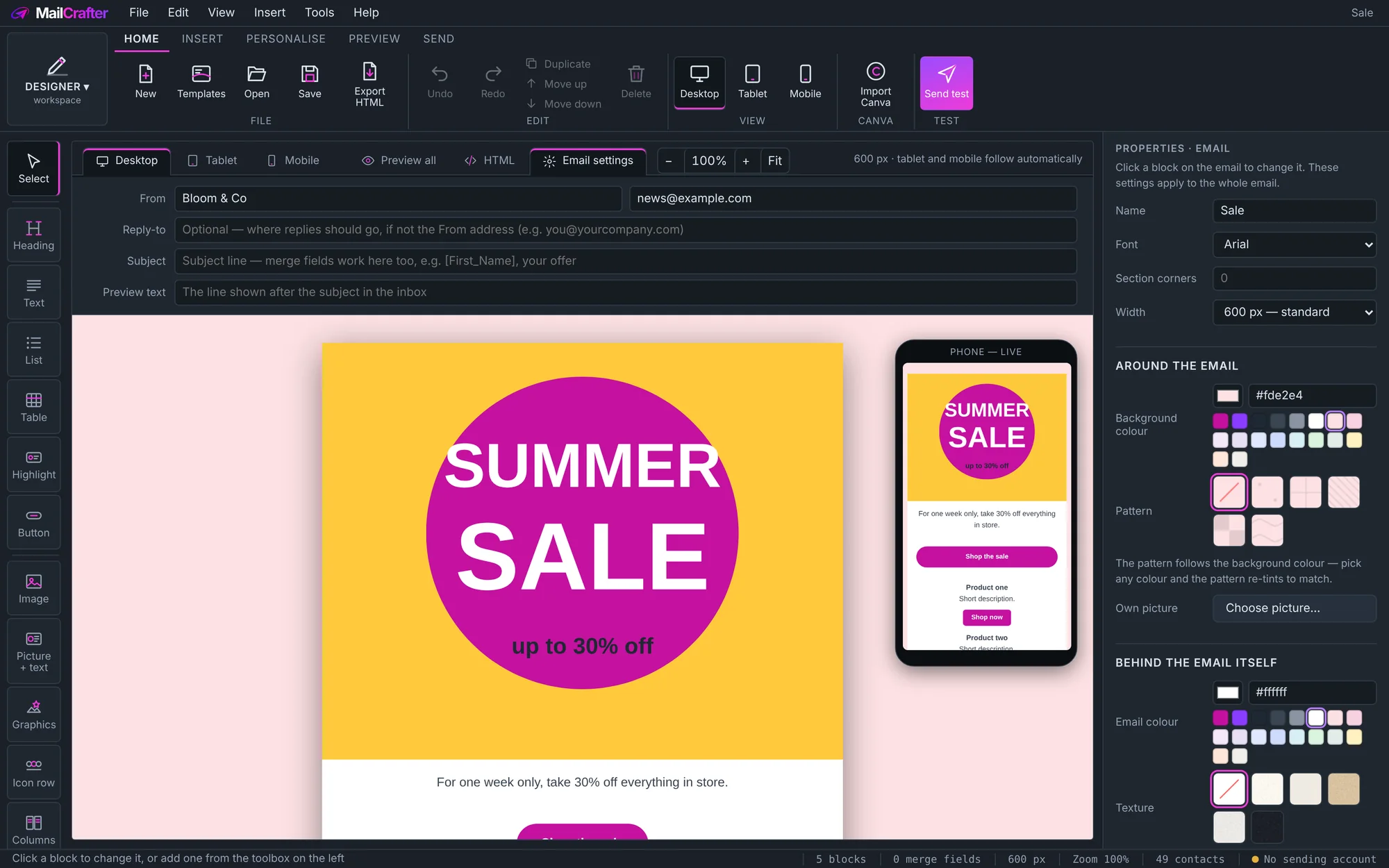
Click empty space beside the email, or the Email settings tab above it, to change the whole email:
- From, Reply-to, Subject and Preview text (the line inboxes show after the subject). Merge tags work here too.
- Width: 600 px is the standard; full width stretches across wide screens.
- Font for the whole email, and Section corners for rounded cards.
- Around the email: the Background colour, a Pattern that takes its tint from that colour, or your own picture.
- Behind the email itself: the Email colour and an optional paper Texture. A block with its own Strip colour covers these.
Views, zoom and saving
- The tabs above the email switch between Desktop, Tablet, Mobile, Preview all and HTML. You design on Desktop; the others follow.
- −, + and Fit zoom the email; Ctrl + mouse wheel zooms too.
- Save keeps the design in MailCrafter; File › Export HTML saves a copy as an HTML file.
Try it. Start a New email, add a Heading, a Text block and a Button, then give the button a link to your website and change its colour.
Revision history
| Revision | Date | What changed |
|---|---|---|
| 1 | 21 November 2026 | First edition. |