Import a mailing list
Bring in subscribers from any Excel file, a CSV, or rows pasted from anywhere. MailCrafter matches and tidies the columns for you.
In this lesson
- Import from Excel, CSV or pasted rows
- Check how columns are matched to fields
- Choose what happens to subscribers you already have
- Save an import so you can repeat it in one click
Start the import
- Open Mailing lists and click Import on the ribbon.
- Drop your file on the window, or click Choose file…. Any Excel file works, old
.xlsor new.xlsx, as do CSV and text files. - No file? Click Paste from clipboard, then copy rows from Excel, Access, your accounting system or a web page and paste them in.
- Leave First row has column names ticked if the first row holds headings.
The window walks you through four steps: Source, Columns & fields, Rules and Review.
Columns and fields
MailCrafter reads your columns, shows a few example values from each, and matches them to fields by name:
"E-mail Address" goes to [Email], "Surname" to [Last_Name], "Mobile" to [Phone]. Check each row:
- Pick a different field from the list if a match is wrong.
- Choose New field to keep a column MailCrafter doesn't know yet, such as "Customer since". It becomes a merge tag you can use in emails.
- Choose Skip this column for anything you don't need.
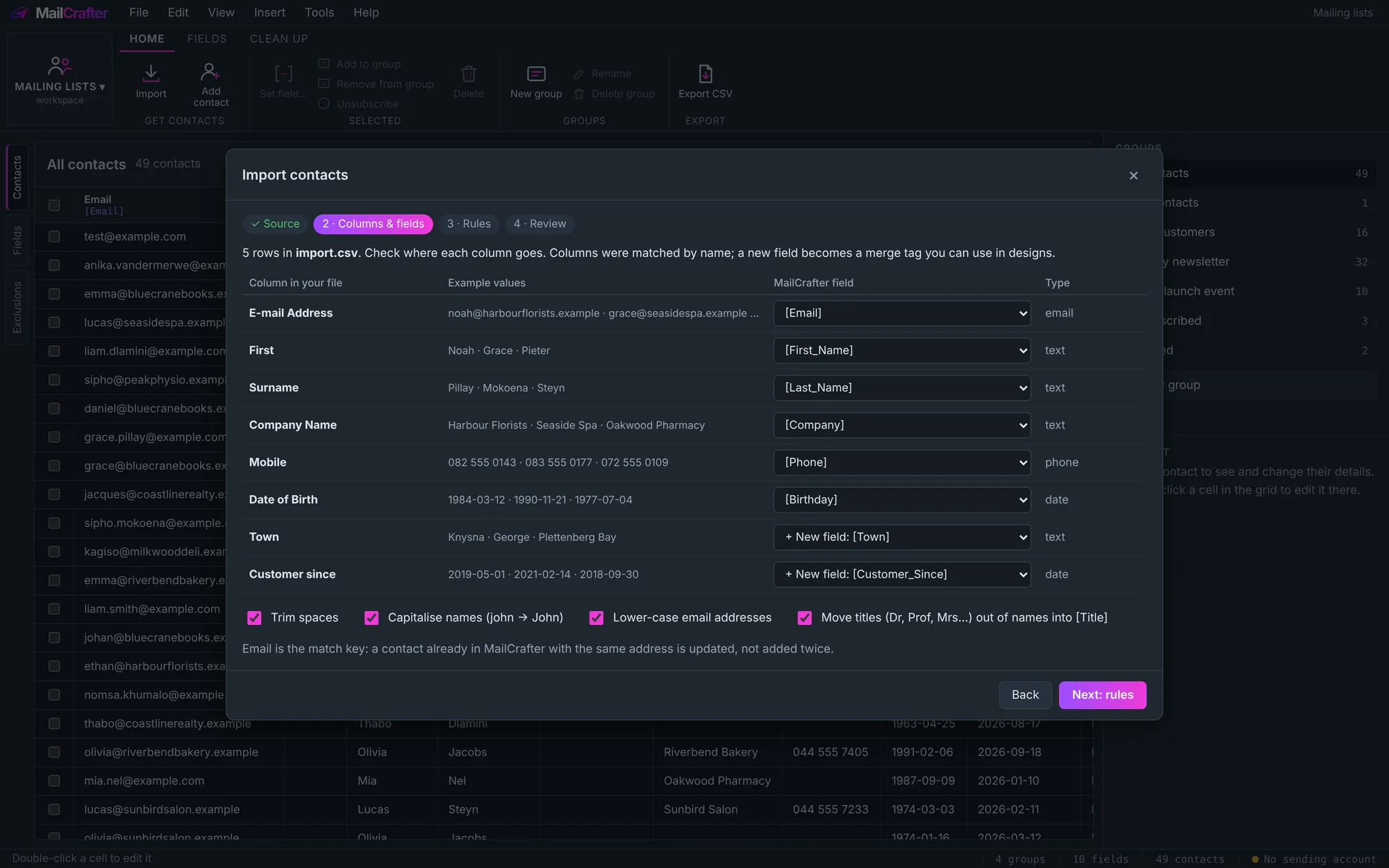
Underneath are clean-up options, on by default: Trim spaces, Capitalise names, Lower-case email addresses, and
Move titles (Dr, Prof, Mrs…) out of names into [Title].
Rules
- Put them in: the list (group) they join, or A new group….
- Already in MailCrafter: Update their details from the file, Only fill in fields that are empty, or Leave them as they are (just add to the group).
- How they agreed to emails: for example Existing customer or Signed up on the website. MailCrafter keeps this record of consent with each subscriber.
- People who have unsubscribed are never subscribed again, even if they're in the file.
- Save this import: give it a name, such as "Shop customers", to run it again next time in one click.
Review
Before anything changes you see the counts: New, Updated, Unchanged, Duplicates in file and Skipped (rows without a valid email address). Click Import to finish.
Next: work with lists, fields and merge tags.
Revision history
| Revision | Date | What changed |
|---|---|---|
| 1 | 21 November 2026 | First edition. |