Connect your sending account
MailCrafter sends through an email account you already have. Connect it once and test it.
In this lesson
- Choose the right kind of sending account for your list size
- Connect Google Workspace or Gmail with an App password
- Set the From name, From address and sending speed
Why your own account
MailCrafter doesn't send through a service of its own. It hands each email to an account you choose, which means no monthly fee, and your emails come from your own domain. Pick the account to suit how much you send:
- Google Workspace or Gmail: already paid for if your business uses it. Google allows about 2,000 emails a day from a Workspace account, fewer from a free Gmail account.
- A sending service (Brevo, Amazon SES or Mailjet): built for bulk email and the better choice for lists of more than a few thousand.
- Other mail server (SMTP): any SMTP server, such as the one that comes with your web hosting.
Connect Google Workspace or Gmail
Google doesn't let apps use your normal password. You create an App password for MailCrafter instead:
- In your Google account, turn on 2-Step Verification if it isn't on already.
- Open
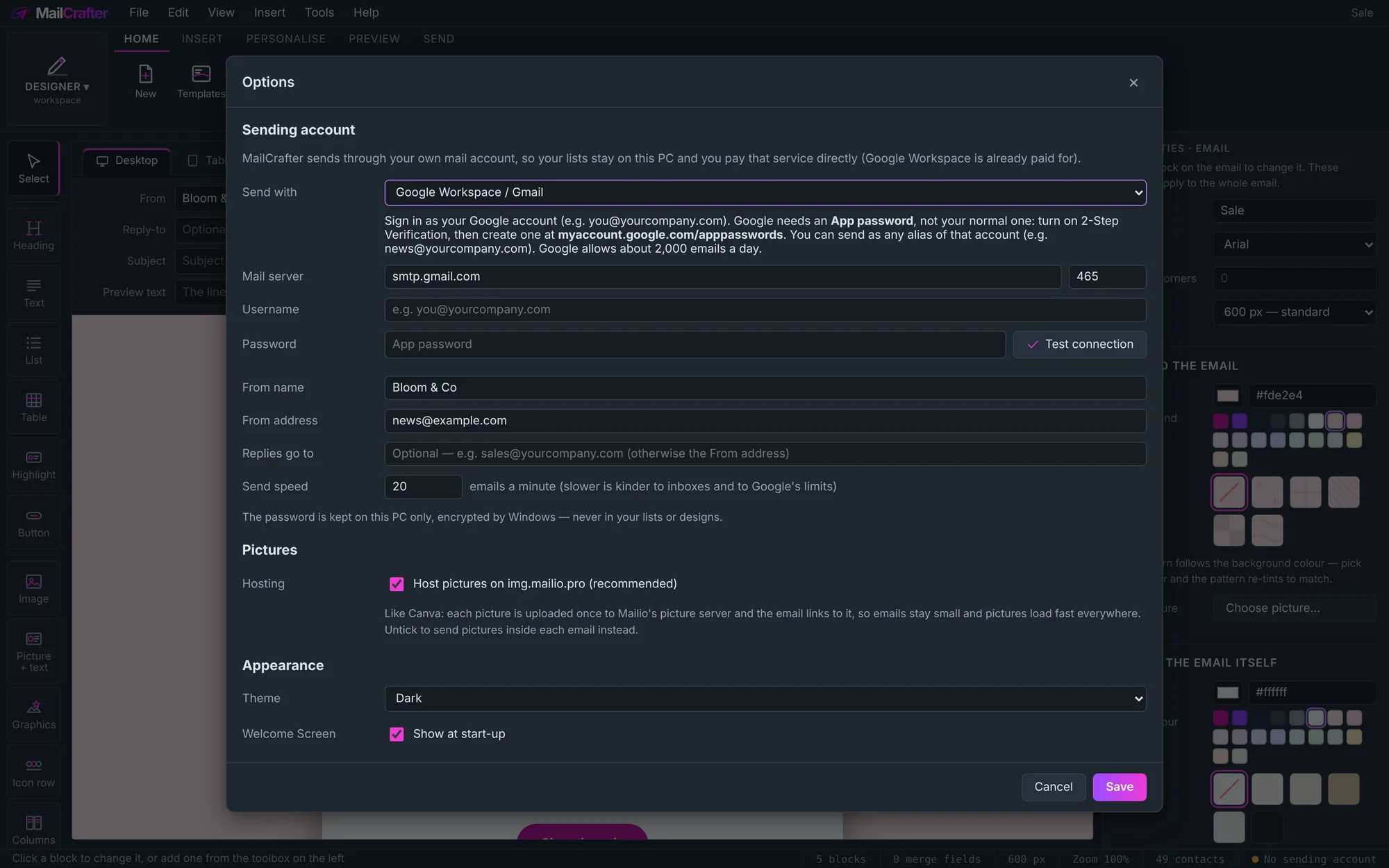
myaccount.google.com/apppasswords, create an App password named "MailCrafter", and copy it. - In MailCrafter, open Tools › Options. Under Sending account, set Send with to Google Workspace / Gmail.
- Enter your full email address as the Username and paste the App password into Password.
- Click Test connection. A tick means MailCrafter can send.
Connect a sending service or other server
Choose Brevo, Amazon SES or Mailjet in Send with and the mail server is filled in for you; enter the SMTP login and key from that service's settings. For Other mail server (SMTP), your email provider or web host can give you the server name, port, username and password. Then click Test connection.
From, replies and speed
- From name and From address: who the email says it's from. Use a name your subscribers recognise, such as your business name. With Google you can send from any alias of the account.
- Replies go to: optional; where replies should land if not the From address, such as your sales inbox.
- Send speed: emails a minute. Slower is kinder to inboxes and stays within your provider's limits; the default suits each provider.
Pictures
Under Pictures, Host pictures on img.mailio.pro is on by default: each picture is put online once and the email links to it, so emails stay small and load fast. Untick it to send pictures inside each email instead.
Next: bring in a mailing list.
Revision history
| Revision | Date | What changed |
|---|---|---|
| 1 | 21 November 2026 | First edition. |