Hero banners and layers
Build the big banner at the top of an email from layers you can move, rotate, resize and stack, as in a design app.
In this lesson
- Add a hero and choose a style
- Move, rotate and resize layers on the email
- Use the Layers panel to reorder, hide and lock
- Understand what happens when you send
Add a hero
Click Hero in the toolbox and pick a style from the gallery: a bold colour with a curve, a full-width photo, a circle with a headline. A hero is a stack of layers: shapes, a photo, words and stickers.
To put your own photo in, double-click the photo layer, or drag a picture file onto the hero. If the photo fills the background, click Make it a movable layer in the properties pane to move and resize it like the others.
Working with layers
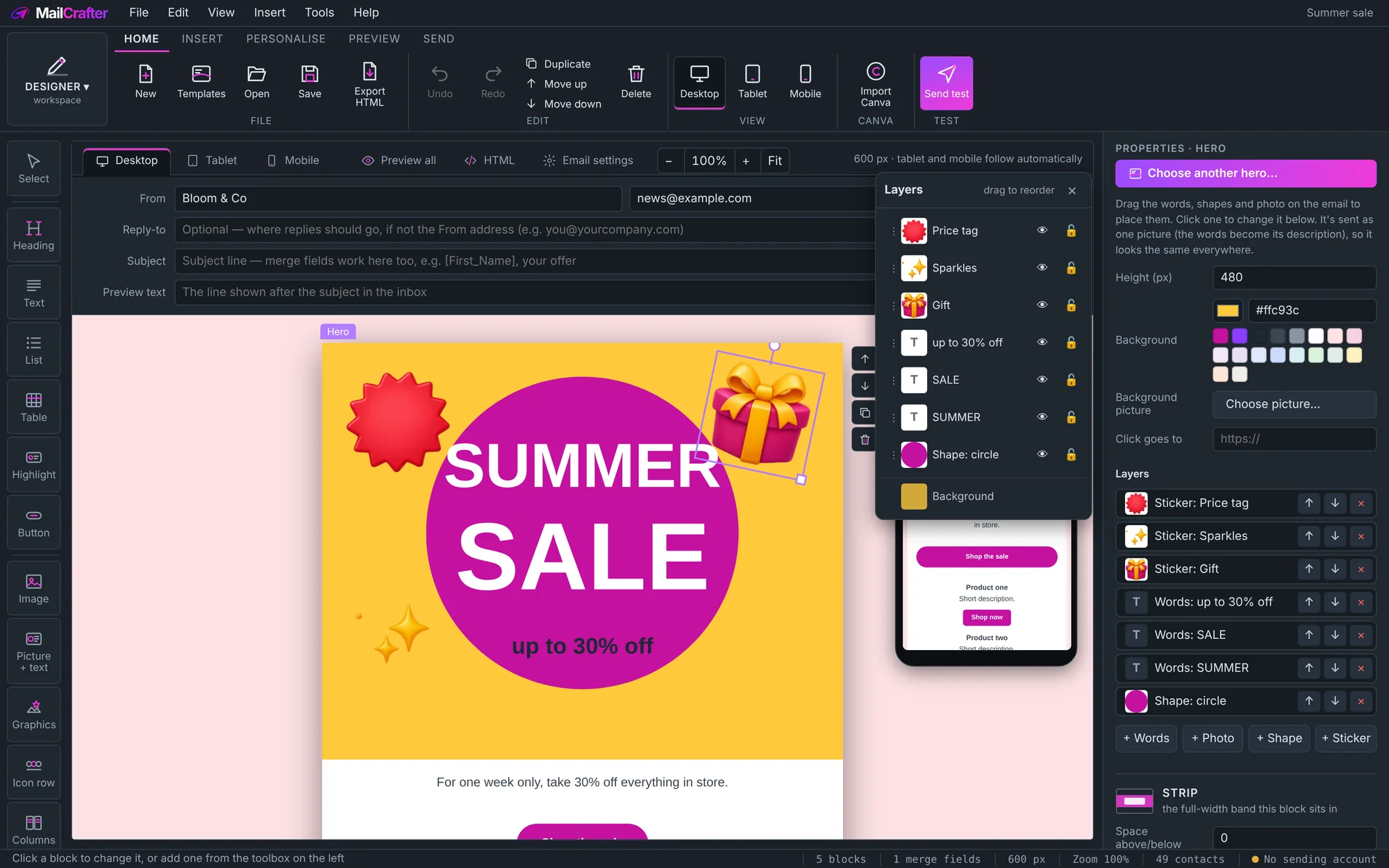
- Click a layer to select it. Drag it to move it; drag a corner handle to resize; drag the round handle to rotate.
- Double-click words to edit them.
- Use the arrow keys to nudge a layer; hold Shift to move it further. Delete removes it.
- Bring to front and Send to back in the properties pane change which layer sits on top.
- Click outside the hero to let go of the layer.
The Layers panel
When a hero is selected, the floating Layers panel lists every layer, top to bottom. Drag a layer up or down to restack it, click the eye to hide it, and click the lock so it can't be moved by accident. Drag the panel by its title to wherever suits you.
Adding graphics to a hero
Select the hero, open Graphics, and click a sticker or badge: it lands on the hero as a new layer. You can also drag a graphic from the library straight onto the hero.
What happens when you send
Email programs can't stack pictures and words on top of each other reliably, so when you send, MailCrafter merges the hero into one sharp picture, at twice the size it's shown for crisp screens. That way it looks exactly as designed in every inbox, Outlook included. Words in a hero are part of the picture, so keep important details, such as prices and dates, in the text below it too.
Revision history
| Revision | Date | What changed |
|---|---|---|
| 1 | 21 November 2026 | First edition. |